Design Studio & Craft Space
- 3.1
- Rating
- 10.00K
- Installs
- Free
- Price
 Analysis by App-foxy
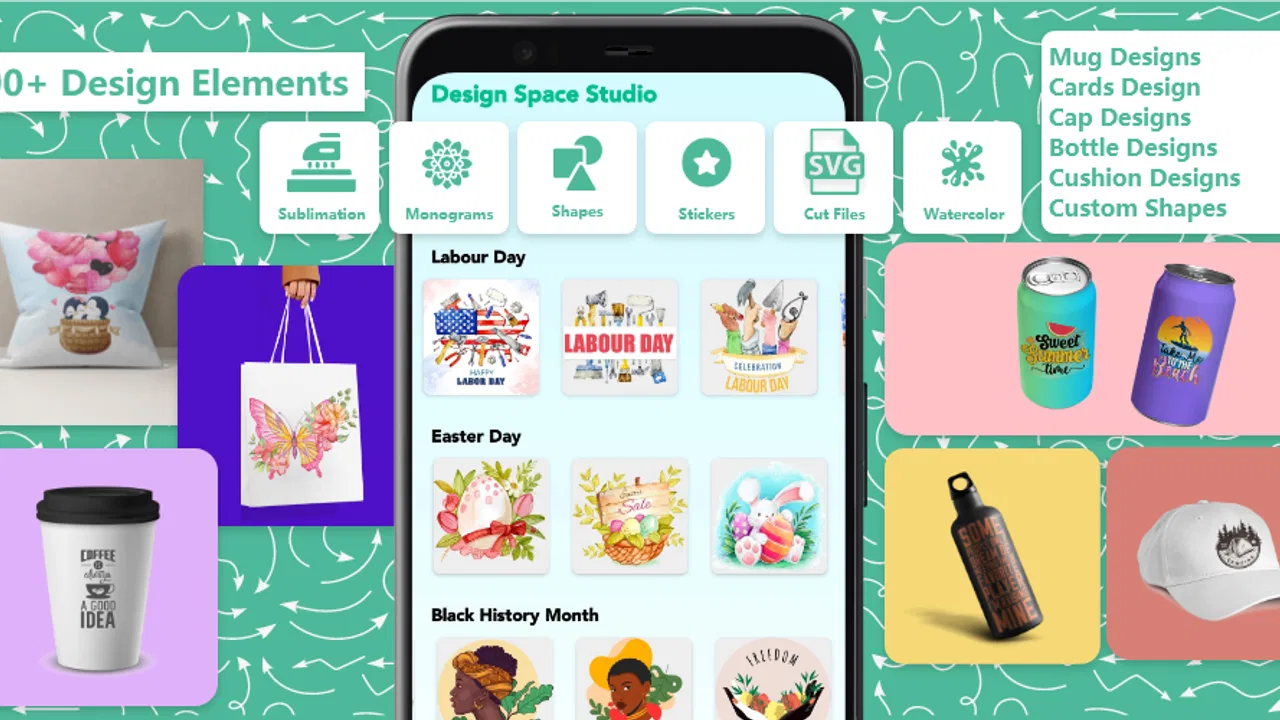
Design Studio & Craft Space is the kind of art and design app I would open when I have a simple DIY idea but do not want to build every element from the ground up. Its focus is practical rather than artistic in the traditional sense: it brings together fonts, monograms, and cut-file-style designs for projects that may eventually become stickers, labels, cards, signs, gifts, or decorations. After spending time with it, my main impression is that it works best as a source of starting points and reusable design pieces, not as a complete replacement for a full desktop design program.
That distinction matters. The app is free to install, aimed at Everyone, and runs on Android devices using at least version 5.0. It comes from couldcoding and sits in the Art & Design category. The current version is 26.0, while its store summary presents a library of more than a thousand SVG-oriented fonts, monograms, and cut files. In everyday use, I found the appeal easy to understand: instead of searching separately for lettering, initials, and project-ready shapes, I could browse them in one place and decide which pieces might fit a craft idea.
Where Design Studio & Craft Space earns its place
I approach this section as a guide to deciding whether a focused craft-design library fits your workflow, rather than whether it can replace every creative tool you use. In my experience, the key question is what you need next: a quick source of lettering and monogram ideas, or precise control over a finished design. That distinction makes it easier to see where this app earns its place—and where another kind of tool may serve you better.
You May Also Like

 Pandora - Music & Podcasts
Pandora’s Music Is Easy to Start, but Harder to Recover
Pandora’s strength is its low-effort path from a seed to a station. Its weak spot is how much confidence it asks you to place in connection, setup, and quiet recovery.

 AccuWeather: Weather Radar
AccuWeather Review: A Quick, Clear Forecast for Everyday Decisions
For everyday plans, the best forecast is the one you can understand quickly. AccuWeather makes rain timing, radar, and local conditions easy to act on, with a few trade-offs.

 Hill Climb Racing
Why Hill Climb Racing Still Turns Crashes Into One More Run
A tiny car, a bumpy hill and one more upgrade: Hill Climb Racing keeps resurfacing because its simple chaos makes every near-miss feel personal.

 AliExpress - Shopping App
AliExpress Makes Global Shopping Feel Personal, but Shoppers Bear the Risk
AliExpress turns a global marketplace into a pocket-sized discovery engine. Its reach is useful, its shopping loop compelling, and its trade-offs easy to miss.

 Lords Mobile: Kingdom Wars
Lords Mobile Is a Kingdom-Building Routine, Not a Quick Match
A case-by-case verdict on the building, battles, device demands, and social commitments that make Lords Mobile rewarding for some players and exhausting for others.

 PDF Scanner app - TapScanner
TapScanner Makes Paperwork Easier to Capture, Check, and Share
TapScanner makes scanning with a phone feel less like a rescue operation and more like a dependable step in getting work done. Its capture tools are useful, though not flawless.
More From Our News Desk
View All News


A useful starting point for personal projects
The strongest part of the experience is the range of material available for quick experimentation. A blank canvas can be intimidating, especially when the project is small and the goal is simply to make something attractive for a family event, a classroom activity, or a handmade present. Having decorative lettering and monogram-style ideas nearby makes it easier to move from “I need something for this” to a visual direction.
I particularly like the way this type of library supports projects built around names and initials. A monogram can turn an ordinary label into something personal without requiring a complicated illustration. It can also help when the design needs to remain readable after cutting, printing, or transferring. My practical advice is to begin with the final object in mind. A design that looks elegant on a phone screen may become too delicate on a small label, while a heavier shape may work better for a sign or a larger decoration.
The SVG emphasis is another meaningful strength for people who use cutting and craft workflows. Vector-based artwork is generally more useful than a simple screenshot when the design needs to be resized or prepared for a machine-oriented project. I would still inspect every file before committing materials, but the format focus makes the app more relevant to DIY users than a basic gallery of wallpaper-like images.
How I would use it in a realistic situation
Imagine I am preparing a small birthday gathering and want matching name labels for cups, favor bags, and a welcome sign. I would first browse the lettering styles and choose one with clear shapes rather than selecting the most decorative option. Then I would test the same initial or name at the approximate size needed for each item. The welcome sign could tolerate more detail, but the cup labels would need strong contrast and uncomplicated letterforms.
From there, I would use the app as a design source rather than assuming the first result is ready for production. I would compare several styles, save the most suitable concept in my project workflow, and check whether thin lines, enclosed spaces, or tightly connected letters might cause trouble during cutting. This is one of the app’s less obvious benefits: browsing a concentrated collection can help me make a design decision faster, even when I ultimately finish the work elsewhere.
That workflow also reveals a limitation. The presence of a cut file or decorative font does not automatically mean it is perfect for every machine, material, or finished size. I would not skip a test cut simply because the preview looks clean. For a one-off paper project, that may be a minor inconvenience. For expensive vinyl, fabric, or a large batch of items, it becomes an important part of the process.
Better for inspiration than for deep illustration
I see this app as a focused design companion rather than a drawing studio. Its value comes from ready-made visual ingredients: lettering, monograms, and themed shapes that can give a project structure. Someone who wants to sketch freely, paint with brushes, edit photographs in depth, or create layered digital artwork will probably feel more comfortable in a dedicated illustration or photo-editing app.
Compared with searching through general image platforms, the focused collection is more efficient for craft-minded ideas. A general search may produce attractive pictures, but those pictures are not necessarily suitable for cutting, lettering, or personalization. Compared with a full design suite, however, this app is likely to feel narrower. A professional editor usually offers more precise control over layers, alignment, paths, typography, and export decisions. I would choose Design Studio & Craft Space when I need accessible design ingredients, and a more advanced tool when the project depends on exact technical preparation.
What the rating and availability suggest
The app has an average rating of 3.1 from roughly 90 ratings and about 30 written reviews, with installs above 10 thousand. I would read that as a sign to keep expectations measured rather than treating it as either a failure or an essential tool. There is enough interest to show that the concept appeals to DIY users, but the rating also suggests that the experience may not satisfy everyone equally.
Its free entry point makes trying the library relatively approachable. That is useful for a person who has one project in mind and wants to see whether the available styles match the occasion before investing time in a larger workflow. At the same time, free access should not be confused with unlimited value. The app includes in-app purchases ranging from $3.99 to $54.99 per item, so I would inspect what is available without payment and consider the cost of any additional package before building a project around it.
My advice is simple: browse first, decide second, and pay only after confirming that the specific material you need is actually useful for your project. A large collection can look impressive, but quantity is less important than whether the lettering is readable, the monogram suits the object, and the file fits the way you intend to work.
The friction points I noticed
The biggest weakness is the gap between browsing a design and turning it into a polished finished product. A library can provide a strong starting point, but it does not remove the decisions that matter later: scale, spacing, contrast, material, cutting tolerance, and final placement. Beginners may expect a ready-made design to solve all of those problems, only to discover that a beautiful preview needs adjustment.
There is also a practical trade-off between variety and focus. A large selection is helpful when I am exploring, but it can slow me down when I already know the general look I want. I found it more efficient to search with a specific use in mind—such as a name label, a monogram for a gift, or a bold sign—rather than opening the app without a project brief. Otherwise, browsing can become the activity instead of the preparation for making something.
The purchase structure deserves attention as well. Because the app is free but offers paid items, I would avoid assuming that every visible design is included. For casual users, that may be perfectly acceptable; one free option may be enough. For someone planning a coordinated collection with several matching elements, the possible cost becomes part of the decision, especially if the project requires multiple styles or themed assets.
I would also be cautious about using intricate designs for very small output. This is not a criticism of one particular file; it is a general consequence of moving decorative artwork from a screen to a physical object. Before cutting a detailed monogram, I would enlarge the preview, look for narrow gaps and fragile connections, and make a small trial. That extra step is especially worthwhile when the material is difficult to replace.
Three ways to get more from the app
- Choose the material before choosing the style. Paper, adhesive vinyl, fabric, and larger display surfaces place different demands on lettering. Starting with the material helps me reject designs that are attractive but impractical.
- Use monograms as a system, not a single decoration. I would select one consistent treatment for initials, then repeat it across labels, tags, cards, or packaging. This creates a coordinated set without needing to invent a new design for every item.
- Separate browsing from production. I would collect a short list of candidates, compare their readability at the real output size, and only then prepare the final project. This reduces the temptation to commit to the first appealing preview.
- Keep a fallback style in mind. If a detailed design fails a test cut, a bold alternative can preserve the project’s overall look. Planning that backup is more efficient than discovering the problem after preparing a whole batch.
Who should install it
I would recommend Design Studio & Craft Space to beginners who enjoy personalized DIY work and want a convenient source of decorative lettering, initials, and cut-file ideas. It is also a reasonable option for parents, teachers, hobby crafters, and occasional party planners who need a visual starting point without learning a complex professional application first. The free price makes it easy to explore, while the Everyone age rating keeps its intended audience broad.
It may be especially useful for someone who often makes small gifts or event details. A personalized tag, a name sign, or a simple monogrammed decoration can benefit from having several styles available in one place. The app can also help a person who knows the message they want but lacks confidence in choosing a type treatment.
I would skip it if my main goal were advanced illustration, professional typography control, detailed photo manipulation, or highly technical vector editing. In those situations, the usual alternatives—a full vector editor, a dedicated drawing app, or a more complete design platform—would offer better control and a more predictable production workflow. I would also hesitate if I needed a guaranteed one-stop solution from concept to machine-ready output, because I would still want to inspect and test the selected artwork myself.
My final verdict
Design Studio & Craft Space is most convincing as a practical idea library for personalized craft projects. I like that it brings fonts, monograms, and cut-file material into a focused Art & Design app instead of making me sift through unrelated images. Its strongest use is helping me find a visual direction quickly, especially when a project needs names, initials, or decorative lettering.
Still, I would approach it with realistic expectations. The app does not remove the need for judgment, testing, or—depending on the project—another tool for final editing. The paid items also mean that I would check the available material before assuming the free installation covers everything I want. Its 3.1 average rating reinforces my view that it is worth exploring, but not something I would recommend blindly to every creator.
For a casual DIY user, the balance is appealing: install it free, browse with a specific project in mind, test promising designs at their real size, and use the results as building blocks. If that matches the way you create, couldcoding’s app can save time and spark ideas. If you need precision, deep editing, or a complete professional production environment, I would use it only as a source of inspiration and rely on a stronger alternative for the final work.
FAQs for Design Studio & Craft Space
01What is Design Studio & Craft Space, and what can I do with it?
Design Studio & Craft Space is a creative app intended for users who enjoy planning, designing, and organizing craft projects in one place. Depending on the available tools, you can experiment with layouts, colors, patterns, decorations, and project ideas before starting the real work. It is useful for exploring creativity, saving inspiration, and preparing handmade projects, although the exact features may vary by device and version.
02Is Design Studio & Craft Space suitable for beginners?
Yes, the app is generally approachable for beginners because it focuses on visual creativity rather than complicated professional design software. New users can explore the interface, try different elements, and learn through experimentation without needing previous crafting experience. However, some tools may take time to understand, especially if you want precise results or are working on a detailed project that requires careful planning and organization.
03Does Design Studio & Craft Space work offline?
Some parts of Design Studio & Craft Space may work without an internet connection after the app and its resources have been installed, particularly basic design or project-editing functions. Online access may still be required for downloading additional content, synchronizing projects, viewing advertisements, or using connected features. If offline access is important to you, test the main tools after temporarily disabling your connection.
04Is Design Studio & Craft Space free to download and use?
The app may be available as a free download, but users should check the store listing carefully for advertising, optional purchases, subscriptions, or locked creative materials. Free access can include the core experience while premium tools, templates, decorations, or expanded project options require payment. Before confirming a purchase, review the price, billing frequency, and cancellation terms shown on your Android or iOS device.
05What permissions and device requirements should I consider before installing it?
Before installing Design Studio & Craft Space, check whether your phone or tablet meets the required operating-system version and has enough free storage for the application and its downloadable content. The app may request access to storage, photos, notifications, or an internet connection, depending on the features you use. Grant only permissions that seem necessary, and review privacy information if you plan to save or share personal designs.
Pros
- Simple tools make it easy to plan and customize creative projects.
- Useful for experimenting with colors
- layouts
- and handmade design ideas.
- Clean interface keeps the workspace organized while you create.
- Suitable for beginners who want a low-pressure creative experience.
- Project previews help you review ideas before committing to a final design.
Cons
- Advanced users may find the editing options too limited.
- Some features or materials may require in-app purchases.
- Large projects can feel slow on older phones and tablets.
- Export options may not offer every format or quality level you need.
- The app may take time to master if you prefer guided instructions.

Design Studio & Craft Space
Gallery